

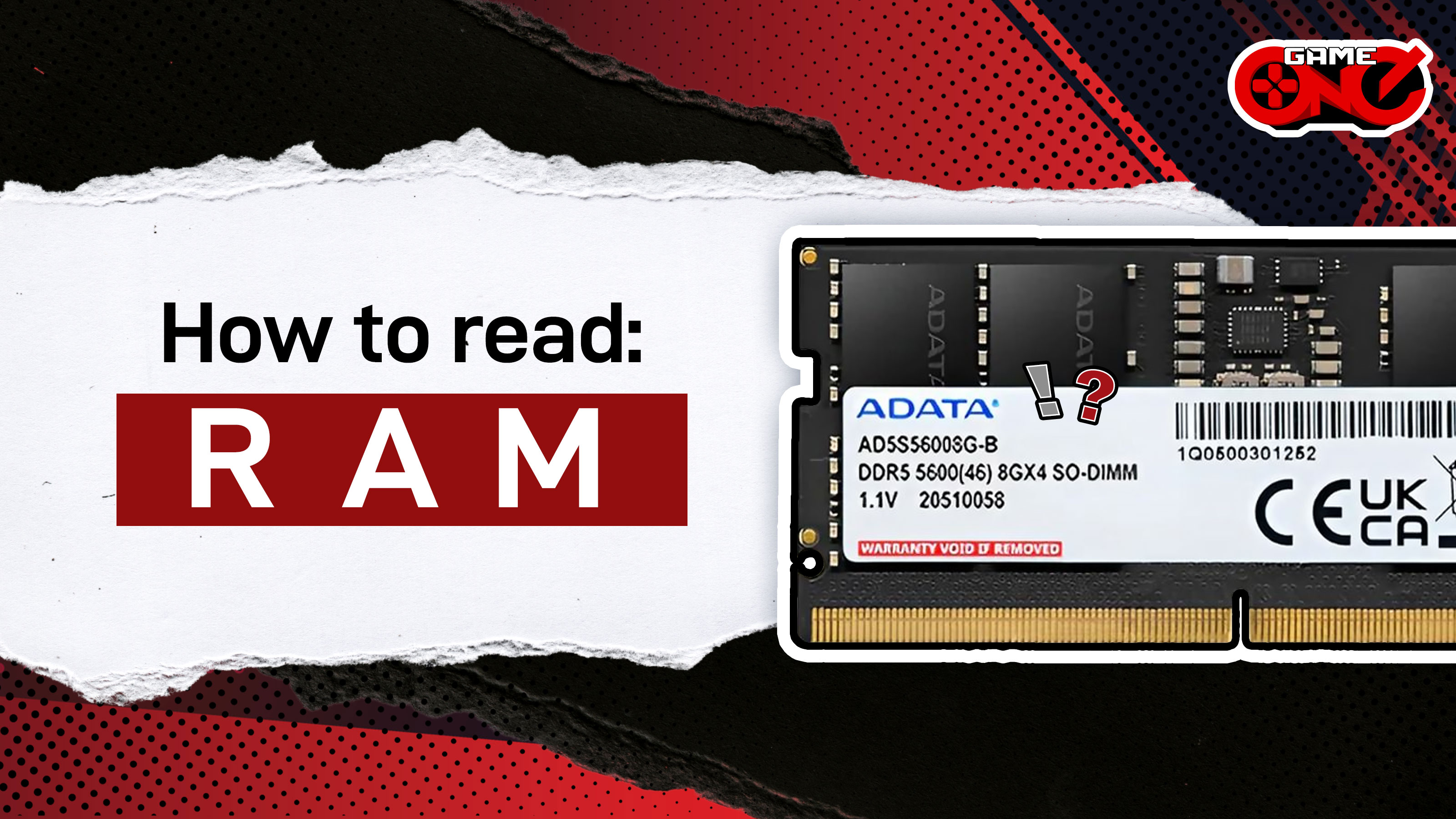
Ever looked at your computer’s RAM and thought, what do all these numbers and letters even mean? Like “DDR4 3200MHz CL16”. Don’t worry, understanding how to read RAM is actually easier than you think, and it can help you make smarter decisions when buying or upgrading your PC. In this guide, we’ll break it down step by step so you can confidently know what your RAM is all about.
RAM (Random Access Memory) is your computer’s short-term memory. It temporarily stores the data your system needs right now, like open apps, documents, and browser tabs. More RAM usually means smoother multitasking and better performance for games and software.
Capacity (GB):
This tells you how much data your RAM can hold. Common sizes are 4GB, 8GB, 16GB, and 32GB. More capacity is generally better if you do heavy multitasking or gaming.
Type (DDR):
DDR stands for Double Data Rate. The common types today are DDR4 and DDR5. The higher the number, the newer and faster the RAM.
Speed (MHz):
This is the frequency at which your RAM operates. Higher MHz means faster data transfer. For example, DDR4 3200MHz is faster than DDR4 2400MHz.
Latency (CL):
CL stands for CAS Latency, which is basically how quickly your RAM can respond to requests. Lower CL numbers mean faster performance. For example, CL16 is slightly slower than CL14.
Voltage (V):
Voltage affects stability and power. DDR4 runs around 1.2V, DDR5 is more efficient at 1.1V, but overclocked RAM or XMP/EXPO profiles use higher volts.
Windows:
Press Ctrl + Shift + Esc to open Task Manager.
Click on the Performance tab and select Memory.
You’ll see your total RAM, speed, type, and slots used.
Physically on RAM Stick:
Most RAM sticks have labels that show their capacity, type, speed, and voltage. Reading this label helps if you’re buying extra RAM to match your current one.
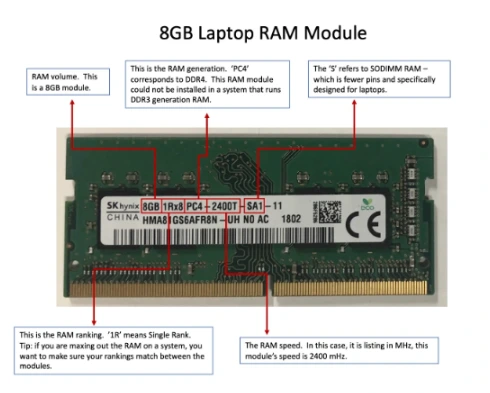
Volume - First things first, the 8GB tells you how much memory this stick has. More GB mean more multitasking power!
Generation - Here it says PC4, which means this is DDR4 RAM.
Important tip: DDR4 RAM won’t fit in a system that only supports DDR3, so always check your laptop’s compatibility.
Type for Laptops - That little S in “SODIMM”, It means this RAM is specifically designed for laptops. It’s smaller than desktop RAM and has fewer pins.
Ranking - The “1R” means Single Rank. This is more relevant if you’re mixing multiple RAM sticks, matching ranks can help avoid performance issues. RAM ranking refers to how memory chips are organized on a stick.
Essentially, knowing the rank helps you optimize speed and stability, choosing the right combination can make your PC faster and smoother.
Speed - Finally, the “2400” indicates the RAM speed. In this case, it runs at 2400 MHz (2400 MT/s), which affects how fast your laptop can access memory.
Match the DDR type and speed of your existing RAM.
Don’t overlook latency if you want optimal performance.
Make sure your motherboard supports the RAM size and speed.
Reading RAM might seem technical at first, but once you understand the key specs, capacity, type, speed, latency, and voltage, it becomes simple. Knowing how to read RAM helps you choose the right memory for your needs, whether you’re gaming, streaming, or multitasking. Next time you shop for RAM, you’ll do it like a pro.












Comments